Using a phone as a second monitor is one of the cheapest ways to gain screen space. A tablet or an old phone can hold your chat window, a reference document, a music player or a video call while your main screen stays on the work in front of you. The catch is that the setup is wired or wireless depending on your operating system, and that a phone’s small screen is only useful if you position it at eye level rather than flat on the desk.
- Pick the method that matches your computer: wired for reliability, wireless for convenience.
- Mount the phone at eye level, not flat on the desk, or your neck pays for it.
- Keep the phone on power, since a second display drains battery quickly.
- Use it for one job only, whether that is chat, video or a reference document.
What does the setup actually involve?
At its simplest, it is software plus a way to hold the phone. You install a companion tool on both the computer and the phone, put both on the same network or connect them with a cable, and the phone appears as an extra display you can extend or mirror. Once it is connected, you decide what lives on the second screen. Different tools offer different extras: some give you touch input, some let you drag the mouse across as though it were one display, and some stream a window rather than the whole desktop. A tablet makes a better second monitor than a phone because of its size, but a phone is fine for chat windows, dashboards and music. The setup takes about ten minutes and is fully reversible.
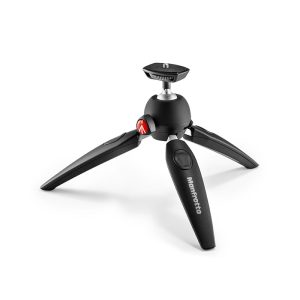
Mounts & Stands — holder. Designed for everyday carry and backed by our 30-day happiness guarantee.
Should you go wired or wireless?
A cable connection is the more reliable option: lower latency, better image quality and no dropped frames when the network gets busy. It also charges the phone while it works, which matters over a long day. Wireless is more convenient because there is no lead crossing the desk, and modern tools handle it well on a decent home network. The problem is battery drain and the occasional stutter when something else on the network starts streaming. If your desk sits near a router, wireless will likely feel seamless; if you are on the far side of the house, expect occasional hesitation. A reasonable approach is to set it up wirelessly, and keep a cable in the drawer for the days it is not behaving. Either way, keep the phone on power where you can.
What second screen tools work with a phone?
It depends on your operating system. Some computers can extend their display to a tablet or phone natively, which is the simplest option since there is nothing to install on the computer side. Where that is not available, third-party tools fill the gap and usually offer more control: you can choose to stream the whole desktop or a single window, set the resolution to match the phone’s panel, and adjust the frame rate to save battery. A phone acting as a webcam is a related use with the same software dependency, and our guide to using a phone as a webcam covers the camera side. Watch out for tools that require an account and an internet connection, because those stream your display off your network even when both devices are on the same desk.
How should you position and mount the phone?
A flat phone on the desk is uncomfortable for more than a few minutes, because you have to look down at it while your main screen is straight ahead. Raise it to eye level instead, either on a stack of books with a small holder, or on a monitor-riser stand that clamps to the edge of the desk. The notes on choosing a desk phone stand apply directly here. An adjustable holder is better than a fixed one, since the right angle depends on how you sit. If the stand has a charging channel, route the cable through it so the lead is not pulling the stand over every time you pick the phone up. Position the second screen slightly to the side of your main one, close enough that turning your head is natural, rather than off at a sharp angle. The best second screen is the one that does not require you to twist.
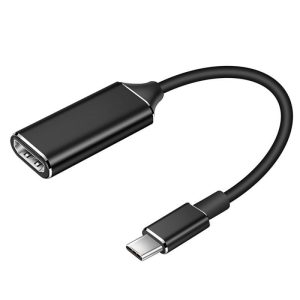
Cables & Adapters — cable. Designed for everyday carry and backed by our 30-day happiness guarantee.
What is the phone actually good for there?
One job at a time. Chat and messaging windows are the classic use, since they need to be glanced at constantly but never take the whole screen. A video call is another good fit, though it wants a bigger device if you watch it for long. Reference material, a calendar, a music player, a timer or system monitors all work well. What does not work well is anything you need to interact with carefully: small text, precise clicking or long typing all take more effort on a phone than on a proper display. If you find yourself squinting or stretching to reach the phone, move that window back to your main screen and give the phone something simpler. A phone that mirrors a chat window all day is genuinely useful; one that tries to be a full second desktop is not.
What should you check before relying on it daily?
Run the setup for a full working day before you commit to it, because small annoyances only show up over hours. Watch for battery drain, since a wireless connection plus a lit display will flatten most phones in a few hours unless the phone is charging. Check that the connection survives the screen locking, since some tools drop when the phone sleeps and need the lock timeout extended. Make sure it reconnects automatically after the network hiccups, and that you know how to disconnect it quickly when you want the desktop private. If the phone gets hot, move it out of its case, because thick cases trap the heat a second display generates. Tweaking the animation and resolution settings is often the difference between a setup you keep and one you abandon after a week.
Frequently asked questions
- Can I use any phone as a second monitor? Almost any reasonably recent one, as long as you can install the companion app. Older phones may struggle with resolution and frame rate, and very old devices may not support the required display standards.
- Does using a phone as a second monitor use much battery? A lot, if it is wireless and the phone is not charging. Plug it in, and dim the phone’s display to the lowest comfortable level, which makes a bigger difference than any other setting.
- Will it slow down my computer? Slightly, since it is encoding and sending an extra display. On a modern machine the effect is small, though lowering the frame rate or streaming a single window instead of the whole desktop reduces it further.
- Can I use the phone’s touchscreen to control the computer? Most tools support touch input, though it is more useful for tapping buttons than for precise work. A mouse and keyboard on the main computer remain the best way to do anything fiddly.
- Is a tablet better than a phone for this? Yes, for anything involving reading or watching, because the larger panel holds a proper window. A phone is best for chat, notifications and other things you only glance at occasionally.