Your phone can make an excellent webcam, and it usually beats the built-in camera on a laptop. The sensors are larger, the lenses are better and you already own it. The trick is getting the phone to talk to your computer and to stay steady at eye level. That means three things: a mount that holds the phone in portrait or landscape, a way to connect it — wireless or with a cable — and enough light on your face. Set those up once and the phone becomes a permanent upgrade to your desk for very little money.
- A phone camera usually looks better than a laptop webcam, especially in low light.
- You need a mount or stand to hold the phone at eye level.
- Connect wirelessly over your network, or with a cable for the most reliable result.
- Good lighting and a clean background matter more than the app you choose.
How do I connect my phone to my computer?
There are two routes: wireless and wired. Wireless apps send the camera feed over your home network, which is convenient because the phone can sit anywhere in the room. The trade-off is that a weak signal shows up as lag or dropped frames, which is very obvious on a call. A cable is more dependable: it keeps the feed steady, charges the phone at the same time and removes the risk of a mid-meeting dropout. Check which connector your phone uses and pick a cable rated for data, not just charging, because many cheap cables carry power only. Whichever route you take, test it once on a quiet call before you rely on it in a meeting. If you use a cable, keep it short enough that it does not tug on the phone.
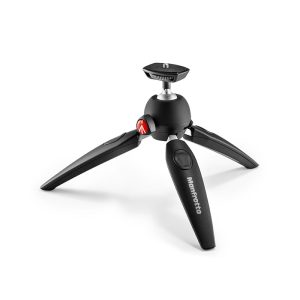
Mounts & Stands — holder. Designed for everyday carry and backed by our 30-day happiness guarantee.
What kind of mount or stand do I need?
You want the camera lens at roughly eye level so you are looking straight at the people on the call rather than down at them. A desk stand with an adjustable arm is the simplest answer, and it doubles as a place to keep the phone while it charges. If your desk is short on space, a clamp mount that grips the edge of the desk or a shelf works well and gets the phone higher. Whatever you choose, check that the holder grips the phone firmly and does not cover the camera or the charging port. A stand that rotates without you having to remove the phone is a small luxury worth paying for. A wobbly stand is worse than no stand at all.
Do I need extra lighting?
Lighting matters far more than most people expect. A phone camera that looks grainy or washed out is almost always a lighting problem, not a camera problem. The best setup is soft, even light in front of you, ideally from a window during the day or a lamp placed behind the phone. Avoid a bright window behind your head, because the camera will expose for the window and turn you into a silhouette. A small desk lamp angled toward your face can transform the picture for very little cost. A plain wall behind you is better than a busy shelf, and it costs nothing at all. Once the light and background are right, you may not need any other upgrade.
Which is better, portrait or landscape?
Landscape is the safer default for most video calls, because it matches the shape of the screen and the expectations of the people watching. It also keeps you framed naturally from the chest up. Portrait works well for social video, vertical presentations and any platform built around a tall format. The good news is that you can switch whenever you like, so long as your stand or clamp can rotate. Check that the holder does not block the camera when you turn it, and remember that some apps crop the frame differently in each orientation. If you present slides or share a screen, landscape keeps your face and the content aligned. If you are unsure, start in landscape and adjust later.
Will my phone overheat during a long call?
It can, especially if it is charging at the same time and sitting in a case that traps heat. Long calls, video processing and charging together all generate warmth, and a phone that gets too hot will dim the screen or drop frames to protect itself. Take the case off for long sessions, keep the phone out of direct sun and make sure the stand leaves some air around the back. If you notice the phone getting warm, unplug it once the battery is comfortable and let it cool. A phone that is warm to the touch is a warning sign rather than a disaster, so act on it early. A small gap between the phone and the desk makes a surprising difference over two hours.
What else should I set up before my first call?
Test everything once, before it matters. Run a short practice call, check that the microphone is picking you up clearly and look at your own preview to see how the framing sits. Tidy whatever is behind you, or choose a plain wall so the background does not distract. Turn on Do Not Disturb so a notification does not pop up mid-sentence. Check that the phone is plugged in or well charged, and that the screen will not time out and interrupt the feed. Write down the settings that worked, so you can repeat them in seconds next time. If you use the phone this way every day, leave the stand set up and ready on your desk. Our guide to phone stands for your desk goes deeper on choosing a holder.
Frequently asked questions
- Can any phone be used as a webcam? Yes. Any phone with a working camera can stream video to a computer, either through an app or a cable. Older phones work fine as long as they still hold a charge and connect reliably.
- Is a phone webcam better than a laptop camera? Usually, yes. Phone cameras have larger sensors and better lenses, so they tend to handle indoor light and skin tones more naturally. The gap is most obvious in dim rooms.
- Do I need a cable or can I go wireless? Wireless is convenient and cable-free, but a cable gives you a steadier image and keeps the phone charged. For important calls, the cable is the safer choice.
- How do I stop the phone from overheating on long calls? Remove the case, avoid direct sunlight, leave airflow around the back of the phone and stop charging once the battery is comfortably full.
- What if the video looks blurry? Check the lens for fingerprints first, then clean it with a soft cloth. If it is still soft, the lighting is probably the problem, so move a light in front of you. A tripod or steady stand also removes motion blur.