Most people’s home screens grew by accident. Apps landed wherever there was space, folders filled up with things nobody opens, and now finding anything takes three swipes and a search. Reorganizing takes about twenty minutes, and you only need to do it once. The trick is picking a system simple enough that you will actually maintain it.
- Start by deleting apps you have not opened in months, which shrinks the job immediately.
- Put only the handful of apps you use daily on the first screen.
- Group the rest into a few folders by purpose, not by color or alphabet.
- Use search instead of hunting: swipe down and type the first few letters.
How do you decide what stays on the first screen?
Think about what you reach for without thinking: messages, calls, maps, camera, music, and whatever you check first thing in the morning. That is usually five to eight apps, and they belong on the first screen with nothing else. The test is simple. If you would be annoyed to swipe for it, keep it. If you have to think about whether you use it daily, it belongs elsewhere. Resist filling empty space just because it is there, since a screen with room to breathe is easier to scan than a full grid. Everything else moves to a second page, which you can reach with one swipe. That single decision removes most of the friction, because the apps you use constantly are always in the same place.
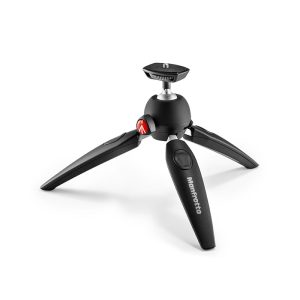
Mounts & Stands — holder. Designed for everyday carry and backed by our 30-day happiness guarantee.
Are folders a good idea or a trap?
Folders are useful in small numbers and a trap in large ones. A folder that holds five related apps, like travel, banking, or photo tools, saves space and keeps things findable. A folder with fifteen apps that you have to open and scroll through is slower than the home screen it replaced, and it hides the app you want. The rule is to sort by purpose rather than by alphabet or color, because you think in terms of what you are trying to do. Name folders so they mean something, and put the most used app in each folder first, since that is the one the folder opens to. If a folder grows past about eight apps, split it or move the extras to the app library.
What about widgets and the lock screen?
Widgets are the best part of a home screen and also the easiest way to ruin it. One or two large widgets that show genuinely useful information, such as the weather, your calendar, or the time, are worth the space. Six small widgets stacked on a page are not, because each one adds visual noise without saving you a tap. On the lock screen, keep only what you check without unlocking, usually the time, the date, and perhaps a weather or calendar glance. Everything else can wait until the phone is open. The same principle applies here as everywhere else: fewer, larger elements are easier to read at a glance than many small ones, and they are less likely to distract you every time you pick up the phone.
How do you keep the screen clean over time?
Prevention is easier than cleaning. When you install a new app, decide immediately where it belongs instead of leaving it on the first screen to be sorted later. Turn on the setting that adds new apps to the app library rather than the home screen, so nothing appears uninvited. Once a month, glance through your folders and delete anything you have not opened since the last check, since unused apps still take up space and still send notifications. Keep the first screen frozen, so you cannot accidentally drag something onto it. A five-minute monthly review is enough to keep the layout working. Without a habit like this, the screen drifts back to chaos in a few weeks, and you end up doing the whole job again.
Does a tidy home screen save battery or time?
It saves time more than battery, though there is a small overlap. A tidy screen means fewer swipes, fewer searches, and less time with the screen on, which is the single biggest draw on the battery. It also reduces the temptation to open an app out of habit, which is where a lot of unnecessary screen time comes from. Widgets that refresh constantly, especially ones showing live data, do use a little power, so keeping them to one or two limits that cost. The bigger benefit is mental. A screen that shows what matters and nothing else is quicker to read and less distracting, and that adds up across dozens of small interactions every day. That is the real payoff, and it is worth the twenty minutes of setup.
What is the simplest system that actually sticks?
Use three layers and no more. The first screen holds the five to eight apps you use daily. The second page holds a few purpose-based folders for everything else. The app library or search holds the long tail of apps you need occasionally but not weekly. That is the whole system, and it works because it is easy to remember and easy to restore when it drifts. Anything more elaborate, with color coding, multiple pages of themes, or dozens of folders, tends to collapse within a month. If you want to go further, a tidy digital screen pairs naturally with a tidy physical one, and our guides to desk accessories that cut clutter and to managing phone storage cover the same idea from other angles.
Frequently asked questions
- How many apps should be on my home screen? Aim for five to eight, the ones you genuinely use every day. If you would not be annoyed to swipe once for an app, it does not need to be on the first screen. Resist the urge to fill empty space, since a screen with room to breathe is easier to scan quickly.
- Are folders better than multiple pages? For most people, a few purpose-based folders are better. Many pages of loose icons are hard to scan, while dozens of folders are slow to open. A small number of well-named folders is the balance.
- Should I delete apps I do not use? Yes. Unused apps take up space, send notifications, and add visual noise. Delete them and reinstall later if you need them, since your account data is usually kept online.
- Do widgets drain the battery? Some do, especially ones that refresh live information frequently. One or two useful widgets cost very little. Many constantly updating ones add up, so keep them to a minimum.
- How often should I reorganize my home screen? A quick monthly review is enough. Deal with new apps as you install them, and the layout will hold without needing a full rebuild. If you notice the first screen getting crowded, that is your cue to move the extras rather than wait.