Setting up a phone for a parent, grandparent, or teenager is mostly about reducing decisions. The goal is a phone that answers the three questions they will actually ask: how do I call someone, how do I get back to the home screen, and why is this thing beeping. Get those right and everything else can wait.
- Set up the basics first: contacts, emergency information, and a passcode they can remember.
- Enlarge text and icons, and keep the home screen to one or two simple pages.
- Turn off or silence the notifications that only create confusion.
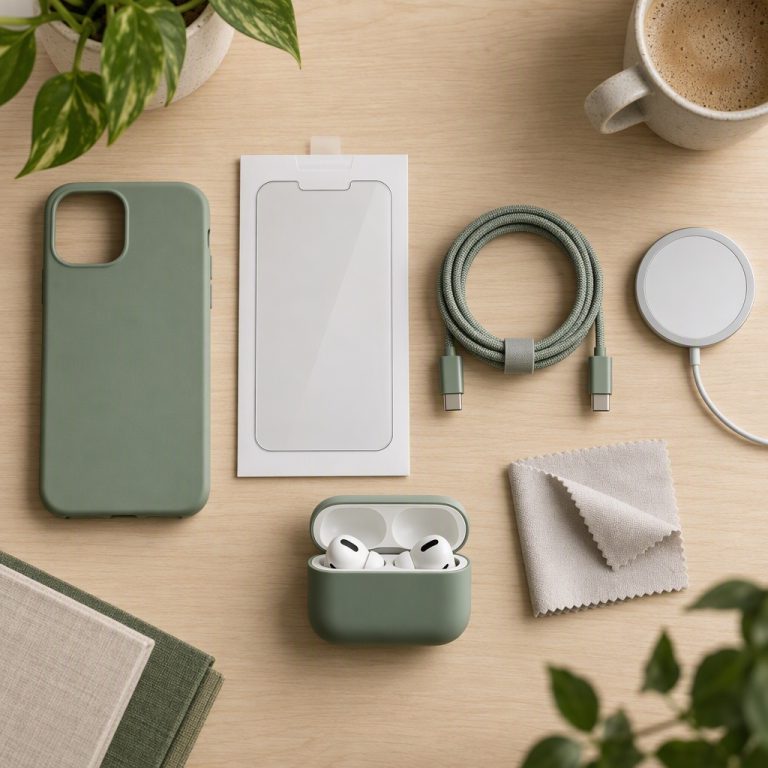
- Add a case, a screen protector, and a charger that lives in one fixed spot.
What should you set up first?
Start with the things that make the phone useful immediately: contacts, a passcode, and emergency information. Transfer or type in the people they actually call, with names that make sense to them rather than the way they appear in a messaging app. Set a passcode that is simple enough to remember and note it somewhere safe for them, because a locked phone they cannot open is worse than no phone at all. Add emergency contacts and any medical information the phone supports, since that is the setting you hope never to need. Connect to their home Wi-Fi and confirm that calls and messages work before you hand it over. Do not begin with accounts, apps, or customization, because those can be added later once the basics are solid.
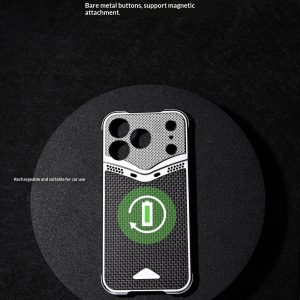
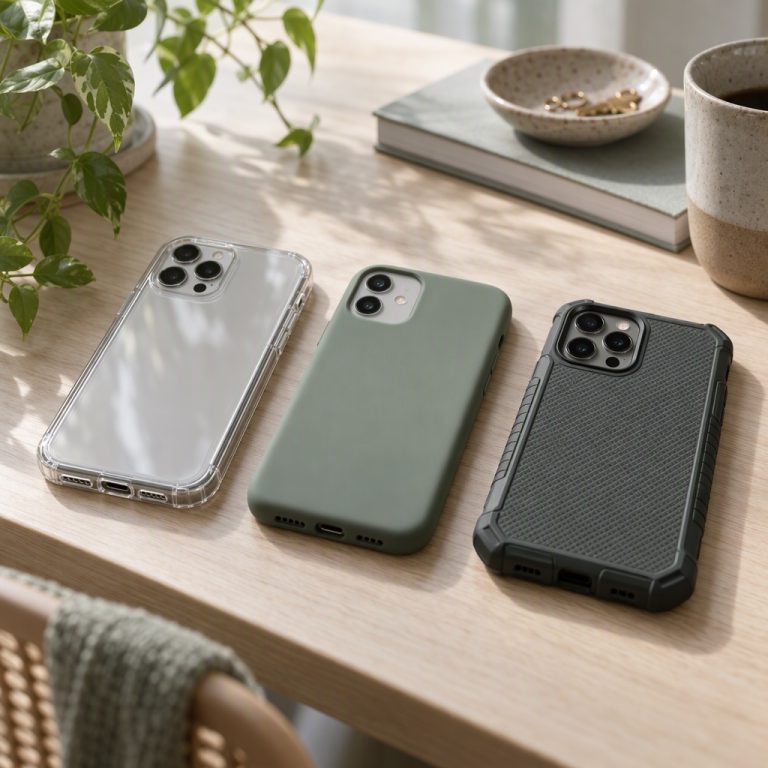
iPhone Cases — case. Designed for everyday carry and backed by our 30-day happiness guarantee.
How do you make the screen easier to read?
Text size and display settings do more for comfort than any other change. Increase the text size and, if the phone supports it, the display zoom as well, so icons and menus are bigger without needing to be tapped twice. Turn on bold text if it helps. Check the brightness setting and consider turning off automatic brightness, because it often leaves the screen dimmer than they would like. A larger, clearer screen also reduces the number of mis-taps, which is the root of a lot of frustration. Keep the keyboard set to a size they can read comfortably, and turn on the setting that shows what a key will type before they lift a finger. These are small changes that make a phone feel much less intimidating.
How do you simplify the home screen?
Reduce the home screen to the handful of things they use daily. A phone call app, messages, photos, and the camera cover most needs, and everything else can live on a second page or inside a folder. Delete or hide the apps that came with the phone and will never be opened, since a crowded screen makes finding anything harder. Put the most important app in the bottom row where it is always visible. If the phone supports widgets, a large clock and a weather widget are genuinely useful and easy to read. Large icons with plenty of space between them reduce accidental taps. Once the screen is simple, resist the urge to add more, even if they ask, until they are comfortable with what is there.
How do you handle notifications and unwanted calls?
Notifications are the fastest way to make a new phone feel overwhelming. Turn off notifications for apps that do not need them, and keep them on only for calls, messages, and anything genuinely urgent. A phone that buzzes constantly gets ignored, and the important alerts get lost among the noise. For unwanted calls, most phones offer a setting to silence unknown callers, and a spam filter for messages. Explain what the silenced calls mean, so they do not worry that the phone is broken. If they use a messaging app, set it to show a preview of the message so they can decide whether to respond without unlocking the phone. Fewer alerts, clearly explained, build more confidence than a complete set of features.
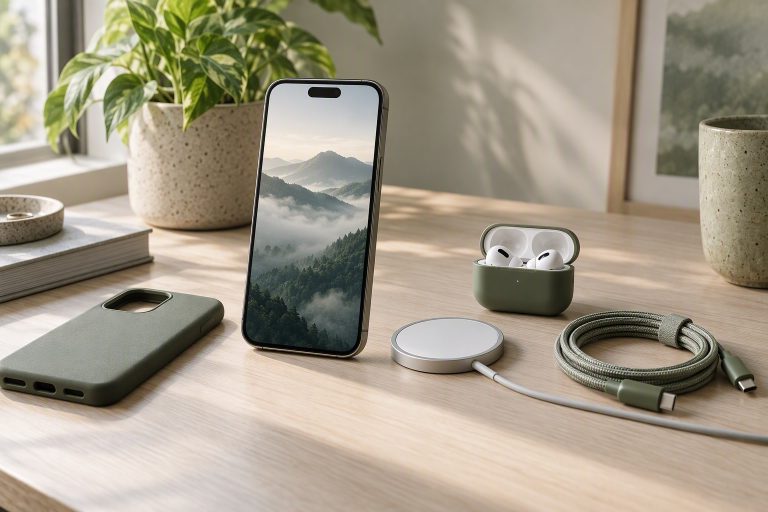
MagSafe & Charging — charger. Designed for everyday carry and backed by our 30-day happiness guarantee.
What about safety and emergency settings?
Spend a few minutes on the settings that matter in an emergency. Confirm that emergency calling works, and set up emergency contacts so the phone can reach someone quickly. If the phone supports location sharing with family, turn it on and explain how it works, including who can see the location. Set up a simple way to find the phone if it is misplaced, since losing a phone is one of the most common worries for someone new to smartphones. If they are comfortable with it, add a shortcut for calling a family member from the lock screen. Then walk through it once together. A setting they have practiced is one they will remember; a setting you configured silently is one they will never find. Our guide on stopping yourself from losing a phone covers the tracking side in more detail.
How do you teach someone without overwhelming them?
Teach in small sessions and in the order they will actually need things: answering a call, making a call, sending a message, taking a photo, and charging the phone. Practicing each one while you are there beats explaining five features at once. Write down the two or three steps they are most likely to forget and leave the note somewhere visible, because a note on paper is easier to find than a note on the phone they cannot navigate. Expect to repeat the same thing more than once, and treat that as normal rather than a problem. Finally, set up a backup before you finish, so photos and contacts are safe if the phone is lost or replaced. Our guide to backing up a phone properly explains the options in plain terms.
Frequently asked questions
- Should I set up a new phone or pass on my old one? A hand-me-down is usually fine if the battery holds a charge and it still receives updates. If the phone is slow, has a worn battery, or no longer gets security updates, a new basic model will cause far fewer problems.
- How do I make a phone easier for an older adult? Increase text size and display zoom, simplify the home screen, and cut notifications down to the essentials. Larger text and fewer choices reduce frustration more than any other single change.
- Should I set up location sharing with family? It can be genuinely useful for safety, but only with clear agreement. Explain who can see the location and when, and make sure they are comfortable with it before you turn it on.
- What if they forget the passcode? Write the passcode down and keep it somewhere safe at home. A forgotten passcode can lock the phone entirely, so a simple code plus a written copy is a better balance than a complicated one.
- How long does setup usually take? The basics take well under an hour: contacts, display settings, notifications, and emergency information. Teaching the daily tasks takes longer, so spread it across a few short sessions. Do not rush that part, since their confidence matters more than your speed.