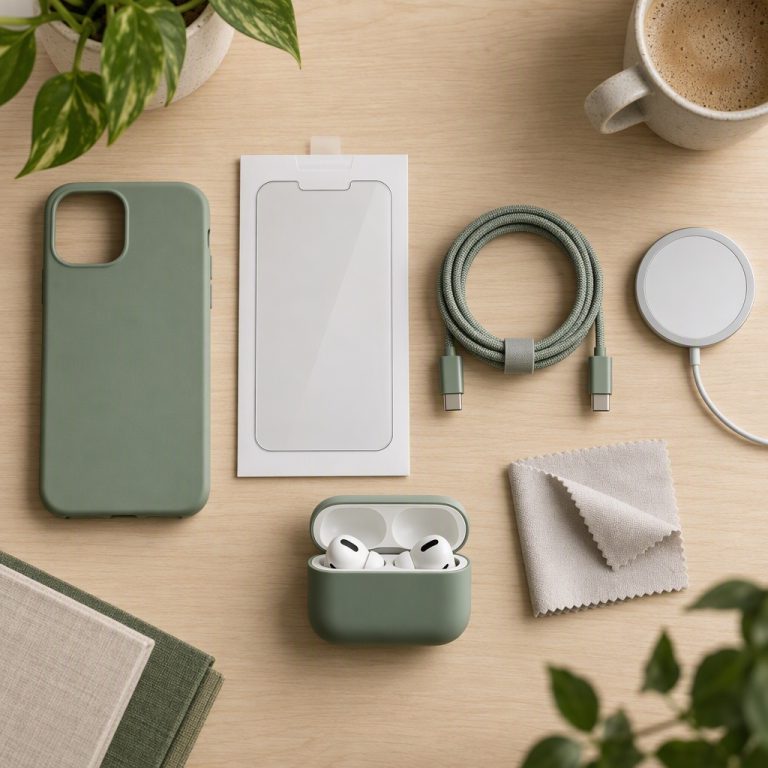
A backup is only useful if you know what it contains and that it actually works. Most people assume their phone is backed up because they have seen a message saying so, then discover the gaps at the worst possible moment. A proper backup covers three things: your photos and videos, your messages and contacts, and the settings and app data you would hate to rebuild. The simplest reliable approach is to use one automatic cloud backup and one manual copy you keep control of. Between them, you can lose the phone without losing the things that matter.
- Back up photos, messages, contacts, and app and system settings.
- Use one automatic cloud backup plus one copy you control.
- Check the backup, do not just trust the message that says it happened.
- Back up before you travel, update or hand the phone to anyone.
What does backing up actually mean?
A backup is a second copy of your data that lives somewhere other than the phone. It is not the same as syncing, which keeps two devices showing the same thing but does not protect you if something is deleted everywhere. A true backup lets you go back to an earlier state, which is what you need after an accidental delete, a corrupted file or a lost phone. There are two kinds. A full backup captures the whole device, including settings, so you can restore the phone almost exactly as it was. A selective backup covers only the folders and accounts you choose, which is smaller and faster but leaves gaps you have to remember. Knowing which kind you have matters, because the two are not interchangeable when you need to restore something.
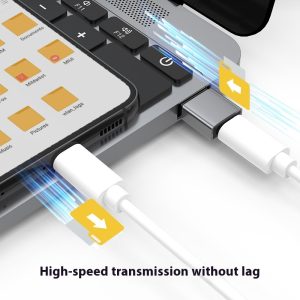
Cables & Adapters — cable. Designed for everyday carry and backed by our 30-day happiness guarantee.
Which backup method should I use?
For most people, a combination works best. Use the cloud service built into your phone for automatic, continuous protection of photos, contacts and messages, because it runs in the background and you never have to think about it. Then add a manual copy of your most important files to a computer or an external drive every month or so. That second copy protects you if your account is locked, a subscription lapses or the service has a problem. If you have a large photo library, the manual copy matters more, because cloud storage tiers are often smaller than people assume. Belt and braces is the right approach here. The point is not to pick a favorite, but to make sure at least one copy exists that you fully control.
How often should I back up?
Automatic backup should be on permanently, so the answer for that part is always. For a manual copy, once a month is a sensible rhythm for most people, and once a week if you take a lot of photos or run a business from your phone. There are also moments that should always trigger a backup regardless of the calendar: before a major system update, before you travel, before you hand the phone to a repair shop and before you sell or trade it in. Those are the points where things go wrong. A backup made ten minutes before an update is worth more than one made a month earlier. If you have ever lost a phone, you already know the cost of waiting is measured in memories, not minutes.
What gets left out of a backup?
More than you would expect, and this is where people get caught out. Streaming apps usually do not back up their downloaded content, because it can be fetched again. Some messaging apps keep their media in a separate folder that is excluded by default. Files stored inside individual apps rather than in your main photo library often stay behind. Two-factor authentication codes and banking apps deliberately refuse to be copied, for good reasons. Screenshots, voice notes and downloaded documents are common omissions too. The lesson is simple: if a file only exists in one app on your phone, assume a backup will miss it until you have checked. Move anything critical into your main library. The safest habit is to keep your important files in one main library rather than scattered across a dozen apps.

Cables & Adapters — cable. Designed for everyday carry and backed by our 30-day happiness guarantee.
How do I check that a backup actually worked?
Do not trust a status message. Open the backup settings and read what was included, then check the date and time of the most recent run. Look at the size of the backup and compare it to what you expect; a suspiciously small backup usually means most of your data is missing. Pick one recent photo you remember taking, and confirm it appears in the backup. Check that your contacts and messages are there too, since those are the ones people miss most. If you have a spare device, try restoring a single file from the backup. That one test tells you more than any settings screen ever will. A backup you have never tested is really just a hope, and hope is a poor recovery plan.
How do I make backups easier to live with?
Reduce the friction so you actually keep doing it. Turn on automatic backup and leave it alone. Keep one cable permanently plugged into your computer so a manual copy takes seconds rather than a hunt for a cable. Use a cable rated for data, not just charging, because a power-only cable will never transfer a file. If you find the process annoying, our guide to picking the right USB-C cable explains what to look for. Free up space first so the backup has room to run, and see what to delete first when storage is tight. Once the routine is easy, you will keep it up, and that is the only thing that really protects you.
Frequently asked questions
- Is a cloud backup enough on its own? It is very good protection for photos, contacts and messages, and it should be your first layer. A second copy you control is still worth having, because it survives account problems and subscription lapses.
- Does a backup include my apps? The list of apps and much of their data is included, but some apps refuse to be backed up and their downloaded content usually is not. Reinstalling is normally quick; the data inside is the part that can go missing.
- How much storage do I need? It depends on how many photos and videos you keep. Video is by far the biggest item. Check your current library size before choosing a storage tier, and remember that backups often grow faster than expected.
- Can I back up without a computer? Yes. Automatic cloud backup does not need a computer at all. A computer or external drive simply gives you a second, independent copy, which is useful for large libraries.
- What should I do before selling my phone? Back up everything first, confirm the backup works, then sign out of your accounts and erase the device completely. Do not rely on a factory reset alone without checking that your data is safely copied.